Creating Contacts
Add agents, homeowners, and vendors to your Cura contacts so you can assign them to jobs and use them in documents.
Where to Add Contacts
Go to Contacts in the sidebar (or Dashboard → Contacts). On the contacts page, click Add Contact to open the add-contact form.
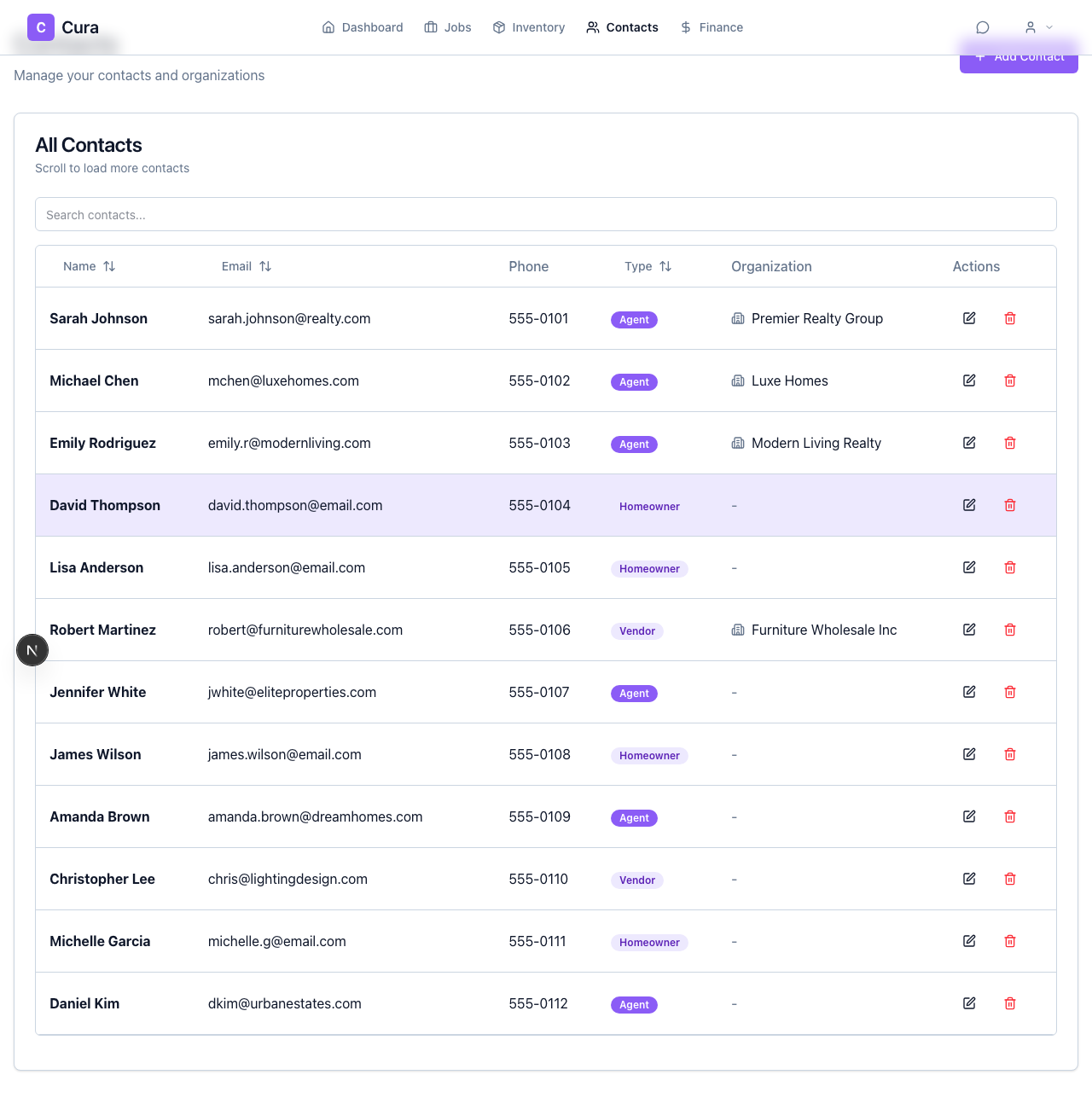
You can also create a contact while adding contacts to a job: use Search or add contacts... and choose Add new contact to open the same form; the new contact is then added to the job automatically.
What to Enter
Required
- Name — Full name of the person or contact.
- Type — Choose how you use this contact:
- Agent — Real estate agents, listing agents.
- Homeowner — Property owners.
- Vendor — Contractors, movers, other vendors.
Optional
- Email — Used for documents and communication.
- Phone — Used for documents and quick contact.
- Address — Street, line 2, city, state, zip, country. Useful for proposals and contracts.
- Organization — Link the contact to an organization (e.g. brokerage). You can pick an existing one or create a new organization from the form.
Step-by-Step: Add a Contact from the Contacts Page
- Open Contacts from the sidebar.
- Click Add Contact.
- Enter Name and select Type (Agent, Homeowner, or Vendor).
- Optionally fill in Email, Phone, Address, and Organization.
- Click Create (or the primary submit button).
The new contact appears in your contacts list and is available when creating or editing jobs and when generating documents.
Creating an Organization While Adding a Contact
If you link a contact to an organization, you can create that organization from the same flow:
- In the add-contact form, use the organization field to Create new organization (or similar).
- Enter the organization Name and, if you want, Website and Main phone.
- Save the organization, then continue filling the contact and save the contact.
The contact will be associated with that organization.
Importing Contacts from Google
If Google Contacts is connected (via Settings → Integrations), you can import contacts into Cura. Imported contacts are created as Agent type by default; you can change their type and details after import from the contacts list or contact detail page.
Next Steps
- Editing Contacts — Change a contact’s details or type.
- Adding Contacts to Jobs — Assign contacts to a job and set their role.