Editing and Managing Proposal Templates
How to edit proposal template content, change name and settings, duplicate, set default, and delete templates in Cura.
Where to Manage Proposal Templates
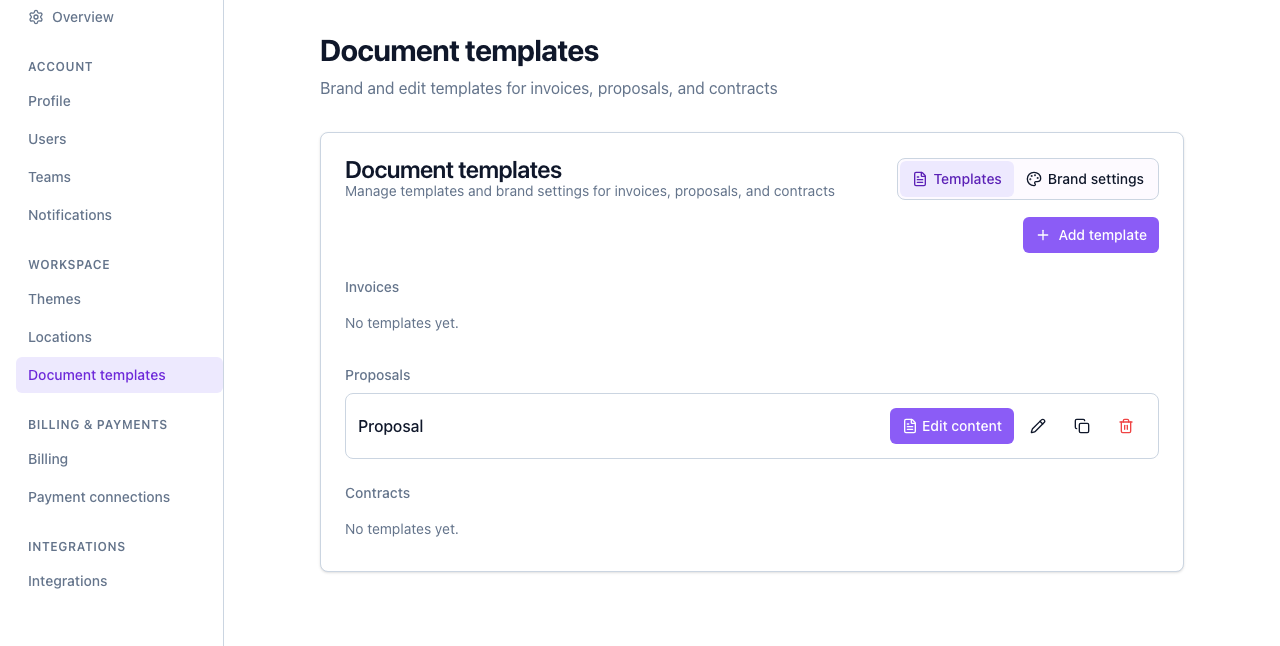
Go to Settings → Document templates and make sure the Templates tab is selected. All your proposal templates are listed under the Proposals section.
Editing Template Content
The Edit content button opens the full template editor where you change the body of the proposal (headings, paragraphs, lists, tables, and placeholders).
- Find the proposal template in the list.
- Click Edit content.
- In the editor, change the text, structure, and placeholders as needed.
- Adjust Page settings (size, orientation, margins) if required.
- Save. Changes apply the next time you generate a document from this template.
Only the template body is edited here. Logo, colors, fonts, and company details come from Brand settings (Document templates → Brand settings tab).
Editing Name and Settings
To change the template’s name, description, document type, or default flag without touching the content:
- Click the pencil (edit) icon next to the template.
- In the dialog, update:
- Name
- Description
- Document type (e.g. keep as Proposal)
- Set as default — Check to make this the default proposal template; only one proposal can be default at a time.
- Save.
The Default badge appears next to the template that is currently the default for proposals.
Duplicating a Template
Use Duplicate to copy a proposal template so you can create a variation without re-entering everything.
- Click the copy icon on the template.
- A new template is created with the same content and page settings; the name will be copied (you can rename it via the pencil icon). It is not set as default.
- Click Edit content on the new template to adjust it as needed.
Deleting a Template
- Click the trash icon on the template.
- Confirm in the dialog. The template is permanently removed.
- If it was the default proposal, another proposal will not be auto-selected as default; set a new default from the pencil dialog if you want one.
Deleting a template does not delete documents that were already generated from it; those files remain in storage and in the job’s document history.
Summary of Actions
| Action | Button / Location | What it does | |-----------------|---------------------|--------------| | Edit content | Edit content | Opens the rich editor for body and page settings | | Edit name/settings | Pencil icon | Change name, description, type, default | | Duplicate | Copy icon | Creates a copy of the template | | Delete | Trash icon | Permanently removes the template |
Related
- Creating a Proposal Template — Add a new proposal template from scratch.
- Overview of Document Templates — How templates and brand settings work.